
Working with SharePoint documents in UiPath flows: Azure App-Only connection method
SharePoint is a popular document management solution used in many RPA flows. While of course you can use UI automation to download or upload files to SharePoint or work with list item data, we propose to integrate directly with the API to achieve better performance (less than 1 second for any operation) and long-term reliability (while the User Interface may change, the API remains unchanged).
In order to help you with this, we have prepared a step-by-step guide explaining how to configure Azure AD App-Only access and use it in a UiPath flow. If you are looking for SharePoint AppOnly authentication instead, be sure to check out our blog entry on this subject.
Step 1: Create Azure App
Navigate to https://portal.azure.com/ and select Microsoft Entra ID from the Azure services section.

Select App Registrations in the left menu, then click on New registration.

Fill in the application name and select the “Accounts in this organizational directory only” option in the Supported account types section. Leave the Redirect URI field empty, as we will take care of it later. Click Register to create the application.

Once the application is created, you will see the following screen where you will find the client and tenant IDs which you will use in your UiPath flow.

To create an application secret, first choose Add a certificate or secret and then New client secret.

Add a description, choose the availability period, and click Add.

The newly created secret will appear in the secrets list.
Attention: you will not be able to get the secret’s value after this point! Copy and save it in a secure place!

Back in the Overview tab, pick Add a Redirect URI and then Add a platform.

From the menu, pick Mobile and desktop applications. Check the https://login.microsoftonline.com/common/oauth2/nativeclient option.

In the Advanced settings section, allow public client flows.

Step 2: Grant permission level to your app
In order to use SharePoint via the Azure App, you will need to grant the Sites.Selected permission. This will allow the app to have access to the selected SharePoint sites which will later be added via API call. In the left menu, select API permissions and then Add a permission.
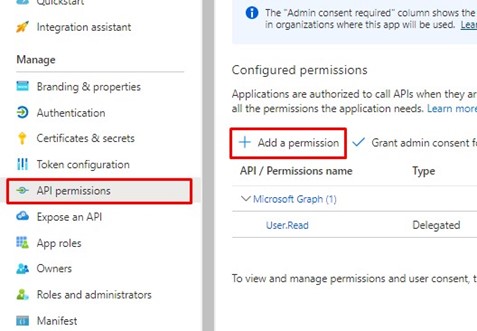
Then select Microsoft Graph -> Application permissions -> Sites -> Sites.Selected, and then click Add permissions.

The Sites.Selected permission requires admin consent, so log in with an admin account and grant consent.

Note: UiPath requires additional permissions beyond those for the selected sites. If you want to avoid granting these extra permissions to the app, you can use the UiPath.MicrosoftOffice365.Activities library version 2.4.3 or earlier, which will limit the access strictly to the selected sites.
Step 3: Select the site your app will have access to
Next, to reference the exact site your app will have access to, we are going to use the Graph Explorer tool which will help us execute the Graph API requests needed to provide access.
Navigate to your target SharePoint site, append /_api/site/id to the URL and grab the Edm.Guid value as we are going to need it in the next steps.

Navigate to https://developer.microsoft.com/en-us/graph/graph-explorer and sign in. Please note that the account you have singed in with has to be an Owner of the SharePoint site you want to grant access to.

Configure a POST type request to https://graph.microsoft.com/v1.0/sites/{Edm.Guid}/permissions.

Fill in the following request body (replacing your App Id and App Name) and run the query.

You can find possible roles used in the request here.
Troubleshooting: Forbidden – 403
If the server response is Forbidden – 403, it is likely that the Graph Explorer app does not have the rights to grant permissions to sites (as per the default configuration). We will temporarily give Graph Explorer Sites.FullControl.All rights, use it to authorize our app and then remove the rights again. To do this, navigate to the Modify permissions tab and click Open the permissions panel. Search for Sites.FullControl.All and then click Grant Consent.
Now you can successfully run the POST request to the permissions endpoint and then proceed to remove the Graph Explorer permissions you just added.
In the azure portal, navigate again to Azure Active Directory -> Enterprise applications -> Graph Explorer -> Properties and then hit Delete. This will remove all permissions granted to the Graph Explorer application.

Step 4: Using the created app with UiPath activities
To authenticate using the created Azure AD app, you can use the Microsoft Office 365 Activities Pack.

Choose the Microsoft Office 365 scope activity and fill in the properties panel: Application Id, ApplicationSecret and Tenant (Tenant Id) fields. Then set the Authentication Type to ApplicationIdAndSecret. Select the Files and Shared services.
(Note: You should consider storing the Application Id and ApplicationSecret in a secure way, for example, you can use a Credentials type Asset in Orchestrator.)

Within this scope, you can use any of the activities from the Files and SharePoint Lists categories and your robot will be authenticated to SharePoint with the Azure AD App.

You can find other useful resources on our blog.